General
Question
1: What is the procedure for ordering product?
Question
2: Where do you find the card code?
Question
3: Do you provide network licenses?
Question
4: How do you install a program?
Question
5: Can I transfer the activation from one machine
to another?
Question 6: I enter my registration number and email address to activate your software. When I click next, the program gives me an error, stating "Connection with the Premier Biosoft Server could not be established". Why?
Question 7: How to activate Beacon Designer™ and Primer Premier?
AlleleID®
Question
1: How can I activate AlleleID®?
Beacon
Designer™
Question
1: How can I activate Beacon Designer™?
Question
2: It takes hours for me to BLAST a few sequences. What should I do?
Question
3: How does Beacon Designer™ access sequences from the Internet without using a browser? Does
it need a browser?
Question
4: Why does the program give a poor rating to a primer/probe set when I am evaluating it,
even if the dG values for hairpins, dimers etc. are OK. This is true even when I enter a primer/probe
set that the program found and rated well previously?
Question
5: How do I know, on what parameters the program failed to search suitable pair of primers and
probe? How do I find out which parameter to change?
Question
6: It takes hours for me to BLAST search sequences against Human or Eukaryotic genomic databases. What should I do?
NetPrimer
Question:
I am not able to download NetPrimer applet these days. Why?
SimGlycan®
Question 1: What are the annual renewal charges?
Question 2: What is the upgrade policy?
Ordering
Question
1: What is the procedure for ordering a product?
Question
2: Who s a PI and why do you need his contact
information?
Question
3: What is a registration number?
Question
4: Where do you find the credit card code?
Question
5: What do you ship to fulfill the order?
Question
6: How can I pay?
Annual
Maintenance Policy
Question
1: What is your upgrade policy?
Question
2: What are the annual maintenance charges?
Question
3: What are upgrades?
Question
4: Are upgrades free?
Question
5: What if an upgrade is announced after I place
an order?
Question
6: When are upgrades released?
Question
7: What if I don't upgrade in the second year
but decide to in the third year?
Question
8: How can I order Annual Maintenance?
Question
9: I paid annual maintenance today. I receive
an email that shows the annual maintenance validity
of after 6 months. Why?
General
Question
1: What is the procedure for ordering product?
Answer: You can order online
using a credit card or by submitting a purchase
order. You can order offline using an institutional
purchase order or by using our offline order
form. For details, click
here.
 Question
2: Where do you find the card code? Question
2: Where do you find the card code?
Answer: The Mastercard Card, Diners
Club, Discover or Visa "Card
Verification Value"
or CVV is printed in the signature
area of the back of the card. It is the
last 3 digits AFTER the credit card number
in the signature area of the card. |
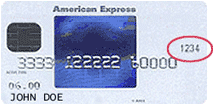 The American Express 4-digit "Card Verification Number" is
printed on the front of
the card above the credit card number, on
either the right or the left side. The American Express 4-digit "Card Verification Number" is
printed on the front of
the card above the credit card number, on
either the right or the left side.
|
Question
3: Do you provide network licenses?
Answer: All current programs
are single user desktop versions. You can install
them on a network. All workstations then would
be able to run them in demo mode and each workstation
on which you would like to run the program will
have to be activated. We do offer volume discounts.
Please e-mail us for details.
Question
4: How
do you install a program?
Answer: Once you download the demo
version double click the installation file
(the .exe or .bin file). The installation wizard
will step you through. To install the program
please choose the default settings.
For Windows*: By default, the program
will install in C:\Program Files and
the icon to launch the program will become available
in the Start Menu under Programs.
*For Windows 10: You can find the program in the Apps view. To get to the Apps view, click the small arrow down sign near the lower-left corner of the Start screen. The program can be pinned to the Start screen by right-clicking the icon and choosing Pin to Start.
Question
5: Can
I transfer the activation from one machine to
another?
Answer: Yes, the activation
can be transferred to a new machine. You just
need to install the program on the new machine and activate using
your Registration number and PI's email address.
Question 6: I enter my registration number and email address to activate your software. When I click next, the program gives me an error, stating "Connection with the Premier Biosoft Server could not be established". why?
Answer:
1. Launch the program.
2. On the first screen that opens, click "Set Proxy Server" button. It is in the right bottom corner
3. The Internet Settings window opens. Please check "Use a Proxy Server" option.
4. Under "Address" type the proxy server's host name or IP address. Under "Port" type proxy server's port number.
Note: The Internet setting is similar to the Proxy server setting used in Internet Explorer. If your proxy server is password protected, the program will automatically detect your proxy server setting and ask you to authenticate the connection by specifying a User Name andPassword. In the Authenticate Proxy window, specify User Name and Password (the fields are case sensitive) and click OK. We support ISA, Squid and Analog servers. For more details, please refer the Technical Information section of the online help of the program.
Question 7: How to activate Beacon Designer™ and Primer Premier?
Answer:
| 1. |
Find your machine ID
i. Double click the product icon to start the program.
ii. Click the Activate Product button located on the first window that opens.
iii. On the bottom left corner of the Activate Product Window, you will find your machine ID. |
| 2. |
Visit our home page : http://www.premierbiosoft.com. |
| 3. |
Login using the email address registered with us. |
| 4. |
Click Get Activation Key. |
| 5. |
Sign in using your registration number. |
| 6. |
Generate activation key or replacement key online using your machine ID. To get a replacement, click "Replace this key" against the ID being replaced and key-in the new ID. |
| 7. |
An activation key is generated on-line and displayed in your browser along with a link to download the manual. |
| 8. |
The activation key will also be e-mailed to you for your records along with the link to download the manual.
You can also E-mail / fax your machine ID to us to get the activation keys. |
AlleleID®
Question
1: How can I activate AlleleID®?
Answer: a) After you download
and install the AlleleID® demo, launch the program.
b) Click Activate on the first
window that opens. Check the license agreement,
enter your registration number (the number is
case sensitive) and email address of PI or licensee.
Click Next.
c) You will see your current activation record.
To activate AlleleID on a new computer click Add. To replace any of the
current activations, select the record and click Replace. If you upgrade the
OS or reinstall the program, click Reactivate.
d) Update the registration information following
the onscreen prompts.
e) Upon completion of the registration process,
the demo will be activated automatically.
Beacon
Designer™
Question
1: How can I activate Beacon Designer™?
Answer: a) After you download
and install the Beacon Designer™ demo, launch
the program.
b) Click Activate on the first
window that opens. Check the license agreement,
enter your registration number (the number is
case sensitive) and email address of PI or licensee.
Click Next.
c) You will see your current activation record.
To activate Beacon Designer™ on a new computer
click Add. To replace any of
the current activations, select the record and
click Replace. If you upgrade
the OS or reinstall the program, click Reactivate.
d) Update the registration information following
the onscreen prompts.
e) Upon completion of the registration process,
the demo will be activated automatically
.
Question
2: It takes hours for me to BLAST a few sequences.
What should I do?
Answer: The time to return
results for a sequence varies dramatically,
depending on the load on NCBI servers from just
a few seconds to several minutes per search.
It will also depend on the speed of your internet
connection. You can expedite BLAST search by
using standalone WWW BLAST by which you can
BLAST your sequences locally. For details please
look up Standalone WWW BLAST under the
Technical Information section of the online
help.
Question
3: How does Beacon Designer™ access sequences from
the Internet without using a browser? Does it
need a browser?
Answer: Beacon Designer™ programmatically
connects to Entrez to download the sequences
you need. It does not require a browser. However,
Beacon Designer™ will launch a browser to show
the sequence details when you choose View>Sequence
Details.
Question 4: Why does the program give a poor rating to a
primer/probe set when I am evaluating it, even
if the dG values for hairpins, dimers etc. are
OK. This is true even when I enter a primer/probe
set that the program found and rated well previously?
Answer: The rating determines
how well the designed oligo meets the search
parameters relative to the tolerance limits
specified for each parameter. If all parameters
were at their ideal target values, the rating
would be 100. On the other hand, if all parameter
were exactly at their tolerance limits, the
rating would be 0. The rating of a given probe,
therefore, depends on two factors:
1. how close the probe is to the target value
of each parameter and
2. how tightly the tolerances are specified.
The default tolerances provided in the program
are chosen to represent the requirements of
typical experiments. Highly rated probes have
most or all parameters near their ideal values
and are very likely to work well.
A low rated probe would not necessarily fail.
It may be worthwhile to consider its properties
relative to your particular experimental conditions
and decide whether the probe is acceptable or
whether the low rating is an artifact of specifying
the tolerances too tightly. Please refer to
the 'formula for rating" under the Algorithm
and Formulae section of the online help.
Beacon Designer™ uses statistical optimization
techniques to display the best primer probe
set for you. If for some reasons you think that
they do not meet you research needs, it is possible
to choose the primers and probes from the "Alternate"
list. At default, the number of alternate primers
and probes displayed are two. To get more sequences,
go to Analyze>TaqMan® search and in the
Output Options, change the number of Alternate
TaqMan® Per Sequence to any number up to
50. The list will be available when you click
Alternate TaqMan®... or Alternate Primers...
in the TaqMan® Properties tab.
While designing a TaqMan® probe, the best
primer-probe set is chosen. But while evaluating
a probe, the program designs an optimum primer
pair for the probe being evaluated. When the
program designs such a pair, the target Tm (search
parameter) is a range. Whereas while evaluating
a probe, the search is restricted to the values
set by the researcher. For example, the primer
pair with a target Tm of 10 degrees less than
the TaqMan® (+/- 2 degrees) are searched
then the researcher will have to suitably change
the Target Tm in the Evaluate TaqMan® Window,
which is tricky. This is why a different primer
pair is reported during evaluation. Parameters
considered during design and evaluation are
therefore different and result in different
rating for the same probe.
Question
5: How do I know, on what parameters
the program failed to search suitable pair of
primers and probe? How do I find out which parameter
to change?
Answer: When Beacon Designer™ fails in finding a suitable
primer or probe, the search status appears in
red under Primer / Probe Properties tab indicating
the total number of primer rejected and the
parameters they failed on. You can now change
these parameters and launch a new search.
Example:
Status: No primer pairs
found: 12348 rejected( Prodlen: 6794 Tm Match:
4728 Low Ta Opt: 426) you can increase
both the product length and Tm to check if it
is possible to design optimal primers and probes.
Status: No associated
TaqMan® found: 13 rejected( Tm Mismatch:5
Distance: 8) You can change both the
TaqMan® Tm and the Maximum Bases between
Primer and TaqMan® in the Advanced Search
Parameters to check if it is possible to design
optimal primer and probes.
Status: No TaqMan®
found: 31 rejected ( Hairpin: 16 5'End starts
with G: 15) you can change the hairpin
maximum dG in the advanced parameters to check
if it is possible to design optimal primers
and probes.
Question
6: It takes hours for me to BLAST search sequences against Human or Eukaryotic genomic databases. What should I do?
Answer: The sequences on BLASTing keeps the result page loading with new hits for a very long time.
To retrieve the BLAST results, Beacon Designer™ requires the page to load completely, which did not happen for the sequences. This causes the program to wait indefinitely when you BLAST the sequence.
The solution is simple. To get round this situation, simply activate the FILTER option in Beacon Designer™. This filters off the biologically insignificant (but statistically significant) hits (repeats) allowing the results page to load just a limited number of hit, allowing it to load faster. To do this, select the sequence and press the BLAST button on the toolbar. After selecting Human genome and genome (reference only) database, press the Advanced button. In the dialog box that opens, select the Filter option by checking the box. Press OK and then Search. This will retrieve your BLAST results immediately after filtering out insignificant hits.
NetPrimer
Question: I am not able to download NetPrimer applet these
days. Why?
Answer: The current NetPrimer applet
requires Java plug-in 1.4 or later for Windows.
Though the applet automatically detects its
availability and downloads the plug-in if required,
may we suggest downloading the Java plug-in
1.4 directly from
For Internet Explorer:
http://java.sun.com/products/plugin/autodl/jinstall-1_4_2-windows-i586.cab#Version=1,4,
0,0
The plug-in is about 11 MB and the time required
to download will depend on the speed of your
internet connection. Install it on your machine
and then launch NetPrimer. Hope this helps.
SimGlycan®
Question
1: What are the annual renewal charges?
Answer: The annual renewal charges are $2,950 USD and the catalog number is SG4-AM.
Question
2: What is the upgrade policy?
Answer: The purchase of SimGlycan® product grants the registered owner (the Licensee), who will be registered the right to use the SimGlycan® computer program and data files. Thereafter, for continued product use, this license can be renewed for each year by paying the prevailing Annual License Fee.
For more information regarding the Annual Maintenance Policy, click here.
Ordering
Question
1: What is the procedure for ordering
a product?
Answer: You can order
online using a credit card or the institutional
PO no. Alternatively, you can order offline
using our offline order form or your institutional
Purchase Order. When using the latter, you must
include the Principal Investigator/PI name,
email and phone number, which is needed for
the electronic delivery of the product.
Question
2: Who is a PI and why do you
need his contact information?
Answer: The software
owners are the authors of the software. When
you 'purchase' any software you are, in legal
terms, purchasing the right to use the software.
We must know who is the rightful owner/Licensee
of the software in order to complete the sale.
We assume that the Licensee is the Principal
Investigator/PI of the lab.
Question
3: What is a registration number?
Answer: We issue a
registration number to you when you purchase
a product. It is a unique alphanumeric code
that is necessary to transform the demo version
of the product into a fully functional product
by activating it.
Question
4: Where do you find the credit
card code?
Answer: Card code
refers to the "Card Verification Value"
or CVV. It is printed in the signature area
of the back of the card. It is the last 3 digits
AFTER the credit card number in the signature area of the card. This holds true for the Mastercard, Diners Club, Discover and Visa. The American Express 4-digit "Card Verification Number" is printed on the front of the card above the credit card number, on either the right or the left side.
Question
5: What do you ship to fulfill the order?
Answer: When we receive your order, we process it and
a. We send the registration number and the instructions to activate the program by email to the PI. You can then activate the program by downloading the latest demo version.
b. We send the invoice to the specified billing address.
c. We also send a CD containing the demo versions
of all products with the registration number
printed on the sleeve. We send it to the specified
shipping address by ordinary US mail . It is
not essential for the product delivery, but
is a courtesy mailing to send a printed copy
of the registration number.
Question
6: How can I pay?
Answer: We accept
payments by check, bank drafts/demand drafts,
EFT (Electronic Fund Transfer) and credit cards.
To pay by credit card please use this
form.
Annual
Maintenance Policy
Question
1: What is your upgrade policy?
Answer: To continue supporting
the latest developments in assays and algorithms,
we have found it necessary to institute an Annual
Maintenance Policy. We have a team of five software
engineers and one biologist for each product working
full time, dedicated to continuous improvement.
For the first year from the date of purchase,
we will provide all available upgrades free of
charge. After that, you will be asked to pay a
small Annual Maintenance Fee, which will cover
all upgrades for the following year. Of course,
you are in no way obligated to upgrade. You may
continue using the version you have, as long as
you wish.
The support team is available by e-mail [support@premierbiosoft.com]
Monday through Friday. We hope you
will be satisfied with the value that the Annual
Maintenance Policy will bring you.
Question
2: What are the annual maintenance charges?
Answer: The charges for the
products are as follows:
CatNo. |
Product
Name |
Annual
Maintenance Fee (USD) |
AL2-AM |
AlleleID® Annual Maintenance |
|
BD6-AM |
Beacon Designer™ Annual Maintenance |
|
LD2-AM |
LAMP Designer Annual Maintenance |
|
GE1-AM |
GlycanExplorer™ Annual Maintenance |
|
SG4-AM |
SimGlycan® Annual Maintenance |
|
SG4-AM |
SimGlycan® Enterprise Edition Annual Maintenance |
|
SL3-AM |
SimLipid® Annual Maintenance |
|
SL3-AM |
SimLipid® Enterprise Edition Annual Maintenance |
|
SM1-AM |
SimMet® Annual Maintenance |
|
| *All the software can be activated on upto three computers except GlycanExplorer |
Question
3: What
are upgrades?
Answer: Upgrades are the newer
versions of our products with enhanced functionality.
We release them frequently, generally about
one per quarter.
Question
4: Are
upgrades free?
Answer: Yes, for the first
year. They are then free as long as the maintenance
is current. You may download upgrades from our
web site or upgrade using the Smart Updater
built into the program.
Question
5: What
if an upgrade is announced after I place an
order?
Answer: The software maintenance
for the first year is included in the purchase
price. If a product upgrade is released within
one year from your purchase date, you may download
the upgrades free of charge.
Question
6: When
are upgrades released?
Answer: We release product
upgrades when:
- New features or functions to support the
latest developments in assays and algorithms
have been added.
- Reported problems have been corrected.
- Support for newly released operating systems
have been added.
- Changes to the key web resources used by
the program have been accommodated.
Question
7: What
if I don't upgrade in the second year but decide
to in the third year?
Answer: You will be charged
an annual maintenance fee for two years.
Please click Annual
Maintenance Policy for Annual Maintenance
terms and fee structure.
Question
8: How
can I order Annual Maintenance?
Answer: To order Annual Maintenance
1. Go to our website(www.premierbiosoft.com)
2. Login using the email address of the PI registered
with us.
3. Click "Annual Maintenance Renewal
Status" under the Product Central
on your personalized home page.
4. In the page that opens, click Order button present on the right hand side.
5. Fill out the requisite information and click Submit.
Question
9: I
paid annual maintenance today. I receive an
email that shows the annual maintenance validity
date of after 6 months. Why?
Answer: The annual maintenance
renewal period starts from the day maintenance
expired. It does not start from the day you
pay maintenance. For example your Beacon Designer™
maintenance expired on 07/25/2005, the maintenance
will be valid till 07/25/06 even if you pay
the maintenance on 01/01/2006. For details,
click here.
|


